
- 1
Download Conflux Wallet
Go to confluxwallet.org/download. Choose the build for your operating system (Windows, macOS, or Linux).
- 2
Install and open the wallet
Run the installer. On macOS, you may need to right-click → Open the first time (Gatekeeper). On Linux, unzip the archive (unzip conflux-wallet-2.10.2.zip) and run the extracted binary. Open the application.
- 3
Create a new wallet (or restore an existing one)
On the welcome screen, choose Create New Wallet to generate a fresh 12-word seed phrase, or Restore Wallet to import an existing 12 or 24-word phrase. If you're new to Conflux, choose Create New Wallet.
- 4
Save your seed phrase — properly
The wallet displays 12 words. This is the wallet. Anyone with these 12 words can access your CFX from any compatible wallet, on any device. Write the words on paper, in order, with the numbers. Do not screenshot, save to a cloud note, message it to yourself, or paste it into any website. The wallet asks you to confirm the words by re-entering some of them — take your time on this step.
- 5
Set a password
The password protects the wallet's local encryption — it's how the wallet decides whether to let you (the person at this device, right now) see the wallet. Choose something strong. Do not reuse a password from another service. The password is local. If you forget it, you can restore the wallet using your seed phrase and set a new one — but the seed phrase is the only recovery path. The password is not.
- 6
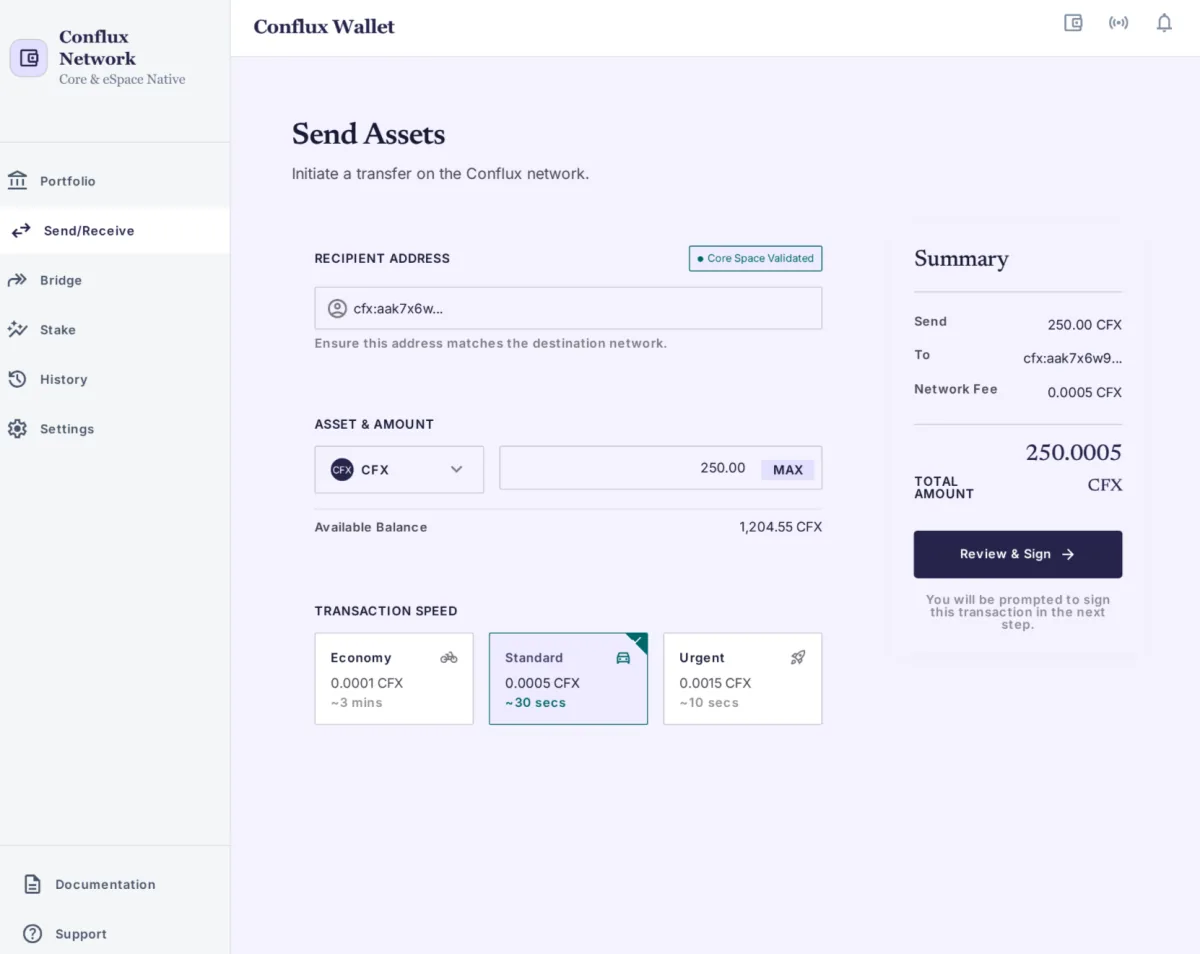
Make a small first transaction
Before sending any meaningful amount: send a small test transaction. Pick a few CFX, send them somewhere you control (e.g., a different wallet you've also set up, or your own deposit address on an exchange), confirm it arrives. Once you've verified the round-trip works, you can use the wallet at full scale.
- 7
(Optional) Pair a hardware wallet
For larger balances, pair a Ledger or Trezor. See Hardware Wallet Support for the device-by-device setup.
- 8
(Optional) Stake CFX
If you intend to hold CFX long-term, the network's built-in staking pays approximately 4% annualized. Open the Stake panel, choose an amount, sign.
Common first-time issues
- "This app is from an unidentified developer" (macOS): right-click the app, choose Open. macOS confirms once and remembers your choice.
- Linux archive won't extract: confirm the download completed (check the file isn't truncated), then run
unzip conflux-wallet-2.10.2.zipfrom the terminal. The extracted binary may need to be made executable:chmod +x conflux-wallet. - Wallet doesn't see my Ledger: open Ledger Live, install the Conflux app, then return to Conflux Wallet and try the connect flow again.
- Lost the seed phrase before I wrote it down: delete the wallet (Settings → Reset), start over from Step 3, and this time write the phrase down.